Bluetooth microphone test — level, sample rate and quality
Pick a microphone, watch the level, and record five seconds to play back. Choose a Bluetooth headset and watch the sample rate collapse — that is the profile switch that makes headset microphones sound like a phone call.
Microphone test
Level, peak, sample rate, and a five-second record-and-play-back check.
Device names only appear after you allow microphone access once. A Bluetooth headset shows up here as an input; a Bluetooth speaker usually does not.
- Allow microphone access to see the list.
How to run the test
Pick the microphone you will really use
Press start and allow microphone access. The first time, the device names show as blank entries; once permission is granted the picker fills in with real labels and tags anything that looks like a headset. Choose the input you actually intend to use, not whichever one was already selected.
Speak at your real distance and watch the level
Aim for an average around -20 dBFS with peaks staying under -6 dBFS. If the verdict says too quiet, move closer before you touch any gain control; if it says clipping, back off or lower the system input level.
Read the sample rate
A full-bandwidth input reports 44.1 or 48 kHz. A Bluetooth headset used as the microphone usually reports 16 kHz or 8 kHz and one channel, because the link has switched to the Hands-Free Profile. That is the moment worth seeing, and it is why a headset mic sounds like a phone call.
Record five seconds and judge it by ear
Play the clip back and listen. Download the WAV if you want to compare two microphones side by side later. Nothing is uploaded, and the clip is discarded when you close the tab.
A microphone test has to answer three things: whether signal is arriving at all, whether the level is usable, and at what quality. The panel above answers all three, and it adds the one readout most mic tests leave out: the sample rate of the input you picked. That number is where a Bluetooth headset gives itself away.
What the test measures
Press start, allow the microphone, and the panel fills in five separate things. None of them is a guess; each is read from the live audio track your browser opened.
- Input device. The picker lists every microphone the browser can see. Device names stay blank until you have granted permission once, so the list only labels itself properly after your first start. Anything whose name looks like a headset is tagged looks Bluetooth.
- Level, in dBFS. A rolling one-second average of the signal, drawn as a bar and printed as a number. This is the readout the verdict line is based on.
- Peak, held. The loudest single sample recently seen, held and then bled off at about 24 dB per second so that a spike is readable instead of a flash. The bar flags itself when a peak passes −1 dBFS.
- Sample rate and channel count. Taken from the track settings, with the audio context rate as a fallback. Anything at or below 24 kHz is marked narrowband.
- Five seconds, recorded and played back. The most honest test there is, because your ears do the judging. You can download the result as a WAV if you want to keep it.
What the test deliberately does not do is push your microphone back out through your speakers while it runs. That is a feedback loop waiting to happen on a laptop, and it is a different job anyway: the live mic monitor handles pass-through, with a gain cap and a howl guard built in.
Reading the level
dBFS means decibels relative to digital full scale. Zero is the ceiling and every real signal is a negative number. Speech that averages around −20 dBFS with peaks near −6 dBFS is in good shape. These are the bands the verdict uses:
| Average level | Verdict | What it means |
|---|---|---|
| Below −55 dBFS | No signal | Nothing is reaching the browser. Wrong device selected, muted, or another app is holding the microphone. |
| −55 to −40 dBFS | Too quiet | Registering, but you will have to push the gain later and you will bring the room noise up with it. |
| −40 to −12 dBFS | Healthy | Clear, with headroom left before anything distorts. Aim here. |
| −12 to −6 dBFS | Hot but usable | Close to the ceiling. Back off a few inches or lower the system input level. |
| Above −6 dBFS | Clipping | Peaks are being squared off. No amount of processing downstream repairs this. |
A quiet reading is usually distance, not a fault. A hand-held phone at 15 cm and the same phone on a table two metres away are not the same microphone, and no setting closes that gap.
The sample rate is where a Bluetooth headset confesses
Run the test once with your laptop or phone microphone, then run it again with a Bluetooth headset picked as the input. Watch the sample rate. It typically collapses from 44.1 or 48 kHz to 16 kHz or 8 kHz, and the channel count drops to 1.
That is not a browser bug. A Bluetooth link carries one profile at a time. Stereo music runs over A2DP, which is output-only. The moment something asks for the headset's microphone, the link has to switch to the Hands-Free Profile, and HFP is a telephone profile: mono, sampled at 8 kHz in narrowband mode, which throws away everything above roughly 4 kHz. When both ends negotiate wideband speech the rate rises to 16 kHz and the ceiling moves up to roughly 8 kHz, still far short of what a music link carries. Either way a headset microphone sounds like a phone call. The full picture is in the guide on the quality drop when Bluetooth switches to HFP.
The switch takes your music with it. While a Bluetooth headset's microphone is open, the same link cannot also be carrying A2DP stereo, so playback quality collapses at the same moment. On an iPhone you get no control over this at all. iOS decides, and there is no setting to keep A2DP while an app holds the headset mic.
Why phone microphone in, Bluetooth speaker out sounds better
Once you have watched the sample rate collapse, the design of a mic-to-speaker setup stops being a matter of opinion. If the phone's own microphone is the input and the Bluetooth device is only ever an output, there is normally no reason for the link to switch profiles. It stays on A2DP at full bandwidth in the ordinary case, and the microphone you are using is a wideband one sitting in your hand rather than a narrowband one clipped to your ear. The usual exception is a car head unit that is already connected for hands-free: iOS can still put the session on HFP in a configuration like that, and the sample rate readout is where you would see it.
That is the whole architecture of the Bluetooth mic app for iPhone this site is built around: the phone is the microphone, the Bluetooth speaker is the output, and nothing asks the speaker for an input, which is what normally keeps the link on A2DP. If you want to see the routing steps written out, the guide on connecting an iPhone microphone to a Bluetooth speaker covers what happens in iOS Settings. Pairing is an iOS job, not something an app can do, because iOS exposes no public API for it.
What this arrangement does not fix is delay. Bandwidth and latency are separate problems, and staying on A2DP does nothing about the second one. Measure yours with the Bluetooth latency test, which plays a chirp and listens for it coming back, and read the explanation of where Bluetooth microphone delay comes from before you go looking for a setting that removes it. There isn't one.
What this test cannot tell you
This is a browser measurement, and there are four things it genuinely cannot see. Knowing them is the difference between a number and an answer.
- The reported rate is what the operating system hands over, not what the radio is doing. Safari in particular reports almost nothing useful from track settings, so the page falls back to the audio context rate, which can read a confident 48 kHz while the actual capture is narrowband, upsampled somewhere between the headset and the tab. The playback is the tiebreaker. If the five-second recording sounds like a phone call, it is one, whatever the readout says.
- On an iPhone or iPad, you cannot choose the input from a web page. iOS picks the route itself, so the device picker will be short or empty there. To watch the profile switch happen, run this on a desktop browser. On the phone, just connect the headset and listen to the difference in the recording.
- dBFS is not loudness in the room. It is a level relative to digital full scale, so a sensitive microphone and a dull one reading the same number are not hearing the same voice. This is a signal-chain check, not a sound level meter, and it says nothing about how loud you will be once you are actually amplified.
- It measures nothing about delay, and nothing about the output side. Round-trip timing belongs to the latency test. If the problem is buzzing, a dead channel or a speaker that will not reach low frequencies, that is the Bluetooth speaker test with its channel checks and its 20 Hz to 20 kHz sweep.
The browser also asks for echo cancellation, noise suppression and automatic gain control to be switched off, so you hear the raw input. It asks. Some drivers and some operating systems process the signal anyway, and no web page can override that.
The five-second recording stays in this tab
The recorder writes a WAV in memory and hands the tab a local link to it. Nothing is uploaded, nothing is sent anywhere, and closing the tab discards it. The download button exists so you can keep a file and compare it against another one later.
Record the same sentence twice, once on the phone or laptop microphone and once on the Bluetooth headset, then download both. Played back to back, the bandwidth difference is obvious in a way that no specification sheet makes obvious.
What to do about a bad result
Match the verdict to the fix rather than changing settings at random.
- No signal. Check the picker first, then close whatever else has the microphone open. Video-call apps hold the input even when they are only sitting in the background.
- Too quiet. Get closer before you touch a gain control. Then raise the input level in your system sound settings, not in the browser.
- Clipping. Back off, or lower the input level. Peaks that hit full scale are gone for good.
- Narrowband. Stop using the headset as the microphone. Use the phone or laptop microphone as the input and send the audio out over Bluetooth instead. If the sound has to be right and the room is difficult, a cable still beats every wireless option, which the comparison of wired against Bluetooth microphones works through honestly.
Once the level and the bandwidth are both sane, the interesting part is what you do with the signal. The voice preset page runs all eight of the app's presets live with their real frequency-response curves, so you can hear what a lowpass at 480 Hz or a bandpass at 1.8 kHz actually does to a voice. If you are setting up for an event rather than a desk, work through the party microphone checklist before the guests arrive rather than during.
The same check, then the actual job
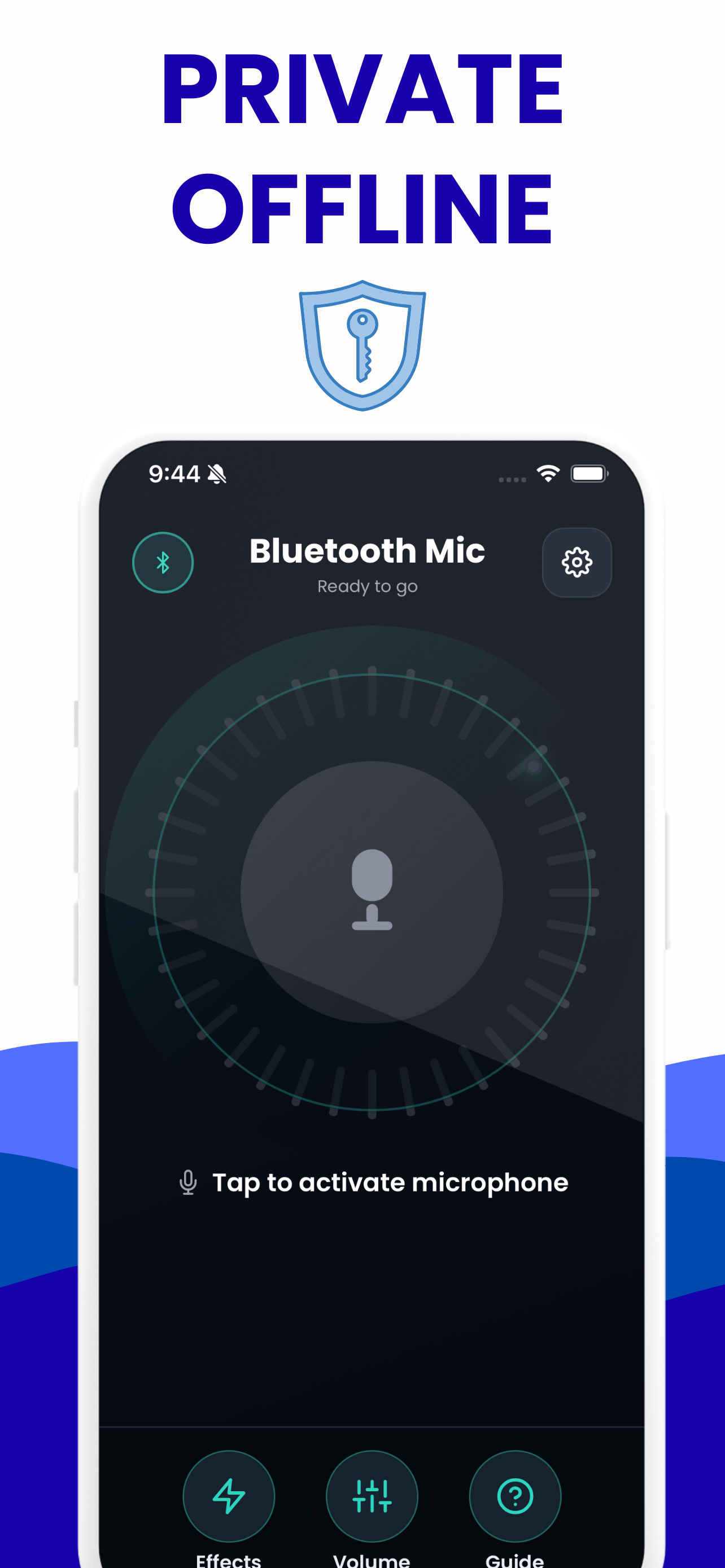
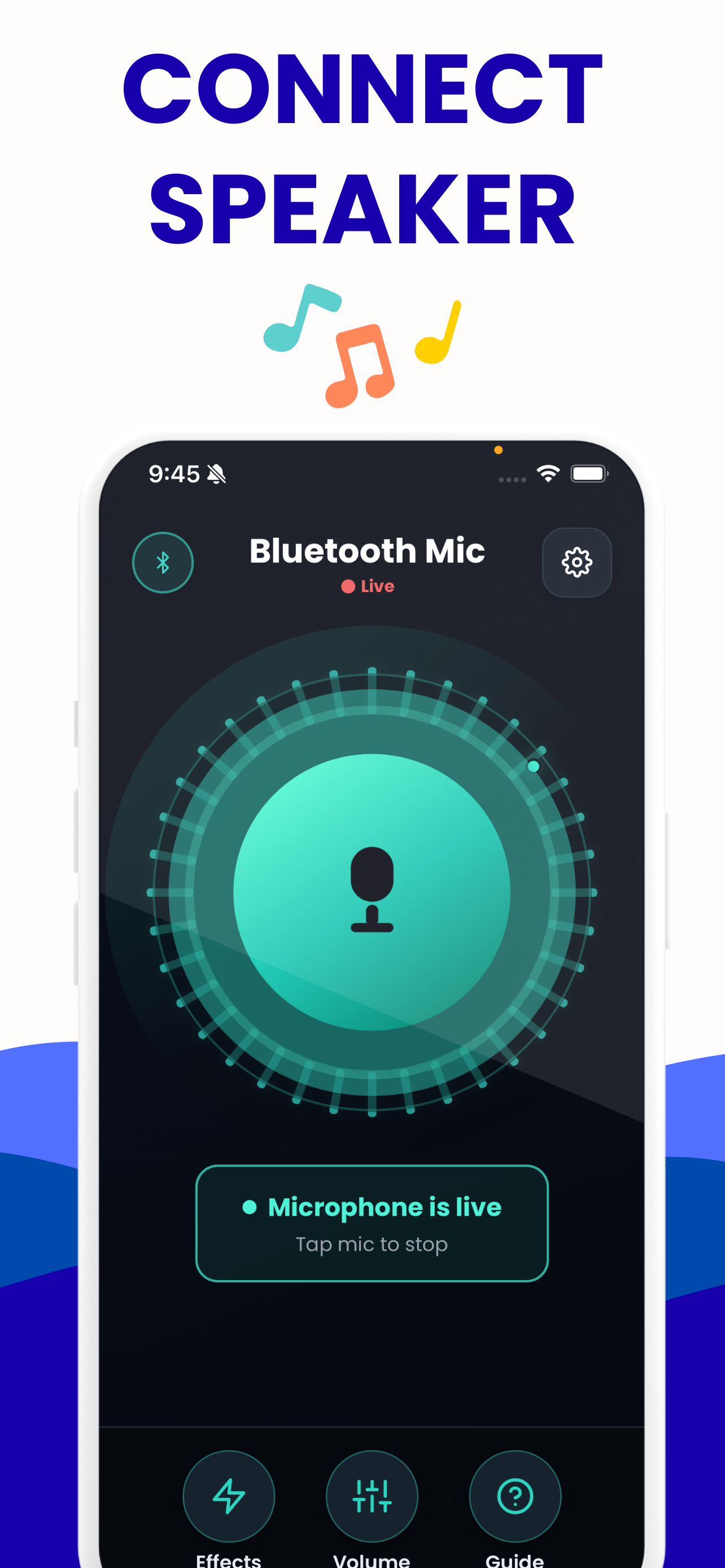
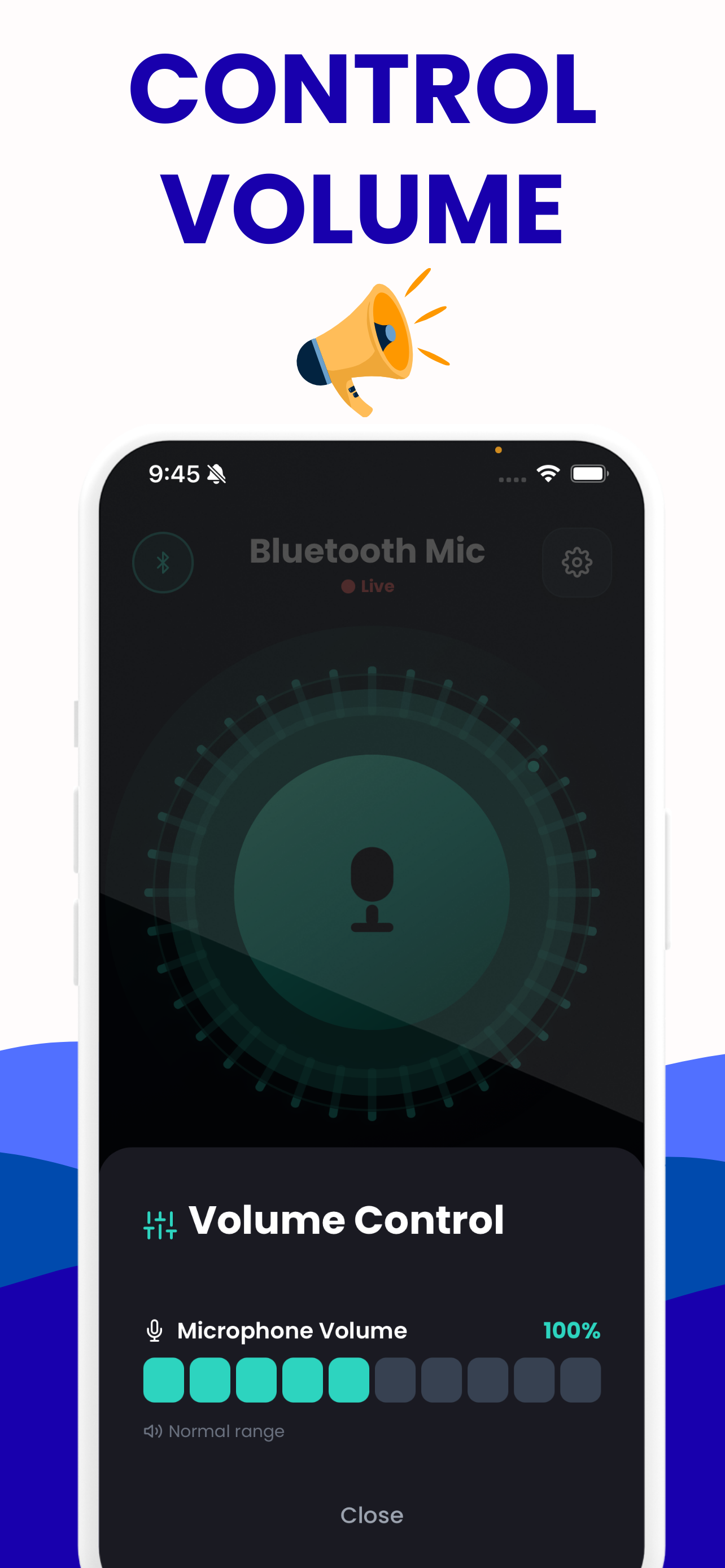
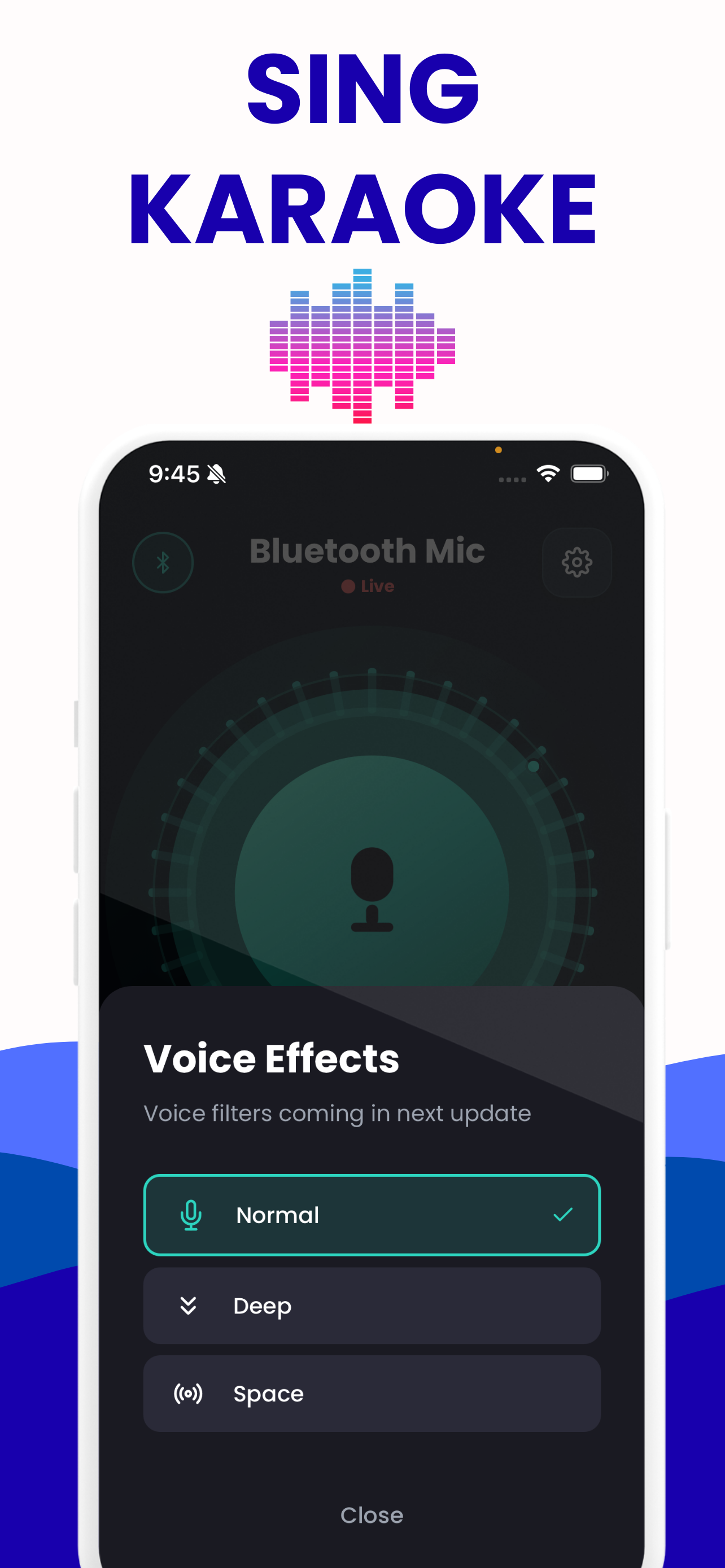
The browser proves the microphone. The app is what you carry into the room: your phone's own microphone routed to whatever output iOS is already using, with the same gain range and the eight voice presets you can hear on this site.

Questions about this tool
Why does my Bluetooth headset microphone sound so bad?
Because your headset switched the Bluetooth link to the Hands-Free Profile. Stereo music runs over A2DP, which is output-only, so the moment an app asks the headset for a microphone the link has to change profile. HFP is mono: 8 kHz sampling in narrowband mode, which throws away everything above roughly 4 kHz, or 16 kHz when both ends negotiate wideband speech, which still stops at roughly 8 kHz. It is a limit of the radio link, not of the app you are using.
Learn more: Why Bluetooth Sound Drops When the Mic Turns On →
What sample rate should a microphone test show?
44.1 or 48 kHz is normal for a built-in or wired microphone. Anything reading 16 kHz or 8 kHz means you are on the Bluetooth call profile. The test flags anything at or below 24 kHz as narrowband for exactly that reason, and the channel count usually drops to one at the same time.
Does this test work on an iPhone?
It runs, but iOS chooses the audio input itself and does not let a web page pick a device, so the input list will be short or empty on an iPhone or iPad. To watch the profile switch happen in the readout, run the test on a desktop browser. On the phone, connect the headset and judge the recorded playback instead.
Learn more: Connect iPhone Microphone to a Bluetooth Speaker →
Can I test an AirPods microphone here?
Yes, from a desktop browser: choose AirPods as the input and start the test. The sample rate drops and the channel count goes to one, which is the same profile switch any Bluetooth headset makes. Your Mac will also drop AirPods playback quality at the same instant, for the same reason.
Learn more: Why Bluetooth Sound Drops When the Mic Turns On →
Does my recording leave my device?
No. The five-second clip is encoded as a WAV in memory and given a local link inside the page. It is never transmitted anywhere, there is no server behind this site to send it to, and closing the tab discards it. The download button simply saves that same local file.
My level is fine but the sound arrives late. Is that the microphone?
No, that is a different problem with a different cause. Level and bandwidth are about the microphone; delay comes from the Bluetooth codec and the receiving device's buffer, and nothing on the phone can take it out. Measure your own round trip with the latency test on this site instead of guessing.
Learn more: Bluetooth Microphone Delay: Real Numbers, Real Fixes →
Other tools on this site
All free, all running in your browser.
Live mic monitor
Hear your own microphone through your speakers or headphones, with the app’s gain range and its eight voice presets.
Open it →Bluetooth latency test
Measures the real round-trip delay of your own speaker by sending a chirp and listening for it coming back.
Open it →Bluetooth speaker test
Left and right channel checks, a 20 Hz–20 kHz sweep and a bass sweep, to find out what a speaker actually reproduces.
Open it →Live voice effects
All eight of the app’s voice presets, live on your own voice, with the frequency-response curve each one applies.
Open it →