Live mic monitor — hear your own voice through any speaker
This is the app’s microphone chain running in your browser tab: microphone in, gain, voice preset, out to whatever your device is playing through. Allow the microphone, put headphones on, and talk.
Live mic monitor
Microphone → gain → voice preset → your output. Nothing is recorded.
Tap the microphone to start.
0–200 %, the same range as the app's volume control.
The curve is drawn from the preset's actual filter settings, taken from the app's source. Robot adds a 50 Hz ring modulator on top, which is not a filter and so does not appear in the curve.
Until you tick that, the level is held at 60 % and nothing is sent to the output, because a microphone and a speaker in the same room is how feedback starts. This is the same cap the app applies when it detects that audio is going to the phone's own speaker.
Device names only appear after you allow microphone access once. A Bluetooth headset shows up here as an input; a Bluetooth speaker usually does not.
How to run it without deafening yourself
1. Allow the microphone
The browser asks once, and the permission stays with this tab. If your device has more than one input, choose it from the device list underneath; entries whose names look like Bluetooth hardware are flagged for you.
2. Headphones on, then send it out
Tapping the microphone button only starts it listening. Nothing reaches your output until you turn on the switch that sends it to your speaker, and until then the gain is held at 60 per cent.
3. Set the level by the meter
Talk at normal volume from about a hand's width away. Aim for an RMS near -18 dB with peaks that never touch 0 dB, and only reach for the gain slider if you are still reading quiet.
4. Try the presets
Eight of them, from Normal through Warm and Radio to Megaphone and Robot. The response curve under the chips is drawn from the filters actually running, at your device's sample rate.
Yes, this is a working live mic monitor, and it runs entirely in this tab. Allow the microphone, tap the button, and your voice goes out through whatever your device is already playing through, with the same 0 to 200 per cent gain and the same eight voice presets the app uses on iPhone and on Android. Put headphones on before you switch the output on.
Put headphones on first
A microphone and a loudspeaker in the same room means feedback. Wear headphones, or stand several metres from the speaker with it aimed away from you, before you send anything to the output.
The tool is built so the first thing you do is the safe thing. Tapping the microphone button starts it listening only: the ring animates, the peak and RMS readouts fill in, and nothing reaches your output. Audio leaves the chain when you turn on the switch that sends it to your speaker, and until then gain is held at 60 per cent. That is the same ceiling the app applies on the phone, on either platform, whenever the system reports the built-in speaker as the live output route.
When it does start to ring, the howl guard catches it: it watches the spectrum across successive frames, and when one narrow band keeps climbing it names the frequency in hertz. That number is worth reading. A howl at 200 to 300 Hz is usually the room and where the phone is sitting, and moving half a metre often kills it. One up at 3 kHz is usually the microphone pointed into the driver. The guide on stopping a Bluetooth speaker from howling works through the rest of the fixes in the order that helps.
What the chain does, stage by stage
Microphone, gain, preset filters, analyser, output. That is the whole thing, and it is the same shape as the chain inside the app. This page asks the browser for the raw stream with echo cancellation, noise suppression and automatic gain control switched off, so what you hear is your microphone rather than a voice-call processor's idea of it. Gain is one multiply. The presets are ordinary biquad filters, and the curve under the preset chips is drawn from the real coefficients at your device's sample rate, not from an illustration.
| Preset | Character | Filters |
|---|---|---|
| Normal | Untouched | None |
| Deep | Lower, heavier | Lowpass 480 Hz Q 0.9, low shelf 160 Hz +6 dB |
| Warm | Rounder, less hiss | Low shelf 240 Hz +8 dB, lowpass 6.5 kHz Q 0.7 |
| Bright | Clearer consonants | High shelf 3.5 kHz +10 dB, peak 6 kHz Q 1 +4 dB |
| Space | Hollow, distant | Bandpass 950 Hz Q 1.1, peak 1.6 kHz Q 1 +4 dB |
| Radio | Old receiver | Highpass 500 Hz Q 0.7, bandpass 1.8 kHz Q 5, lowpass 3.2 kHz Q 0.7 |
| Megaphone | Bullhorn | Highpass 600 Hz Q 0.8, bandpass 1.5 kHz Q 2.5, peak 2.5 kHz Q 3 +12 dB |
| Robot | Machine voice | Bandpass 1.2 kHz Q 1.2, peak 1.8 kHz Q 1 +5 dB, plus a 50 Hz ring modulator |
Robot is the only preset that is more than filters: the ring modulator sits ahead of the biquad stages. If the presets are what you came for rather than the level meter, the voice preset page gives each of the eight its own curve and more room to compare them.
Reading the meter, the peak and the RMS
Two numbers, answering two questions. RMS is the average level over the last window: it tells you whether you are loud enough to carry a room. Peak is the loudest single sample: it tells you whether you are about to clip. A voice can read a healthy RMS and still clip on every hard consonant, so both are on screen.
Hold the phone where you would actually hold it, about a hand's width from your mouth and slightly to one side so plosives miss the capsule. Aim for an RMS near -18 dB with peaks that never reach 0 dB. If the peak readout goes hot on ordinary speech, back the gain off. If you are shouting and the RMS is still at -40 dB, the browser has handed you the wrong input, so use the device picker, which flags entries whose names look like Bluetooth hardware.
Choosing a Bluetooth headset as the input is instructive rather than useful. A Bluetooth link carries one profile at a time, so the moment anything asks for that headset's microphone, the stereo A2DP link collapses into narrowband mono HFP and everything goes dull and hissy. That trap behaves the same way on an iPhone and on an Android phone, and using the phone's own microphone avoids it on both. The trade is the subject of the guide on why Bluetooth mic audio sounds worse than Bluetooth music, and it is why the app is built the other way round: the phone's own microphone on the way in, Bluetooth only ever on the way out.
The gain slider, and when it says capped
The slider runs from 0 to 200 per cent. Anything above 100 is amplification, which raises the room noise along with your voice, so treat the top of the range as headroom for a quiet talker, not a target. If the readout says "capped to 60%", the safety ceiling is holding the value below what you asked for. It says so in words instead of snapping the slider back, because a control that lies about its own position is worse than one that argues with you. Put headphones on, turn the output switch on, and the full range is available.
If you only want to check that a microphone works, and would rather not route anything to a speaker at all, the microphone test records five seconds and plays it back instead of monitoring live. It is the safer tool for a quick sanity check.
What this tab cannot tell you
This page proves the audio chain. It is not a measurement instrument, and there are three things it cannot do that are worth being blunt about.
It does not know what you are listening on. No mobile browser hands a page an API that reports which output route is live, or that lets a page move audio to another one, and that holds on iOS and on Android alike. That is the honest reason this page has a manual switch where the app has an automatic check: on the phone the app reads the route and applies or lifts its ceiling by itself, while in a tab you have to tell it.
The delay you hear here is not your Bluetooth delay. Web Audio adds its own buffering on top of whatever the wireless link costs, and how much varies by browser, by machine and by what else is running. Judging your speaker by how late you sound in this tab gives you a number that is too high and not repeatable. The acoustic latency test exists for that instead: it plays a 30 ms chirp, records it back through the microphone, cross-correlates the two, runs five times, takes the median and subtracts the travel time of sound over the distance you enter.
And the constraints this page asks for are requests, not orders. A browser is free to leave its own gain control or echo canceller running, and some do so anyway. If you want to see what was actually applied to your stream, the mic test reports the settings the browser handed back, along with the sample rate it chose.
Getting the sound to a Bluetooth speaker
Pair the speaker before you open anything else: on an iPhone that is Settings, then Bluetooth; on an Android phone it is Settings, then Connected devices. No iOS app performs that step, because iOS publishes no pairing API at all, and the most an app can do there is put the system route picker on screen. Android is different underneath, and has been for years: the platform does hand apps pairing APIs, BluetoothDevice.createBond since API 19 and CompanionDeviceManager since API 26. It changes less in practice than it sounds like. A mic-to-speaker app plays into whatever output the system has already selected either way, so the sequence you follow is the same on both phones: pair, check that music is coming out of the speaker, then start the microphone.
Once the speaker is connected and the phone is playing through it, everything the phone plays goes there, and the microphone passthrough is simply one more thing the phone is playing. The practical sequence, plus the parts people get stuck on, is in the walkthrough for sending an iPhone microphone to a Bluetooth speaker, and the same ground for the other platform is covered in the guide to using an Android phone's microphone through a Bluetooth speaker.
The delay you will hear, and where it comes from
You will hear yourself slightly behind yourself. That is the wireless link, not the software. A2DP end to end is usually quoted at roughly 100 to 300 ms (Hollyland), and sources genuinely disagree on the detail: SBC turns up as 100 to 150 ms in some measurements and 150 to 300 ms in others. AAC, which is what an iPhone actually uses, sits at roughly 100 to 200 ms. An iPhone has no aptX in any form, so the 40 ms aptX Low Latency figure Qualcomm publishes never applies there. An Android phone has more room to move: since Android 8.0 the platform can negotiate AAC, aptX, aptX HD and LDAC on top of the mandatory SBC, though only LDAC's encoder actually ships in AOSP. aptX and aptX HD are proprietary Qualcomm code that each manufacturer licenses, so whether your handset offers them depends on the handset. Android also puts a Bluetooth audio codec picker in Developer options, and that is the one genuine lever an Android user has and an iPhone user does not; changing codec there moves the delay somewhat, not dramatically. LC3 under LE Audio is quoted at about 20 to 30 ms by the Bluetooth SIG, and dedicated 2.4 GHz wireless microphone systems come in under 20 ms.
For scale: under about 20 ms is unnoticeable, 40 to 50 ms is where lips and sound visibly part company, and past about 100 ms it feels like a bad phone call. Live self-monitoring is far more sensitive than passive listening, which is why the delay is obvious in headphones and much less annoying when an audience simply hears the speaker. Where each codec's share of the total comes from is broken down in the codec latency comparison, and what it means in a room is in the guide to why a Bluetooth microphone lags.
Where to go next
Measure your own round trip on the latency test before deciding whether a setup is usable, because a 120 ms link and a 350 ms link behave nothing alike in a room. If the speaker sounds wrong rather than late, run the tone and sweep checks on the speaker test first.
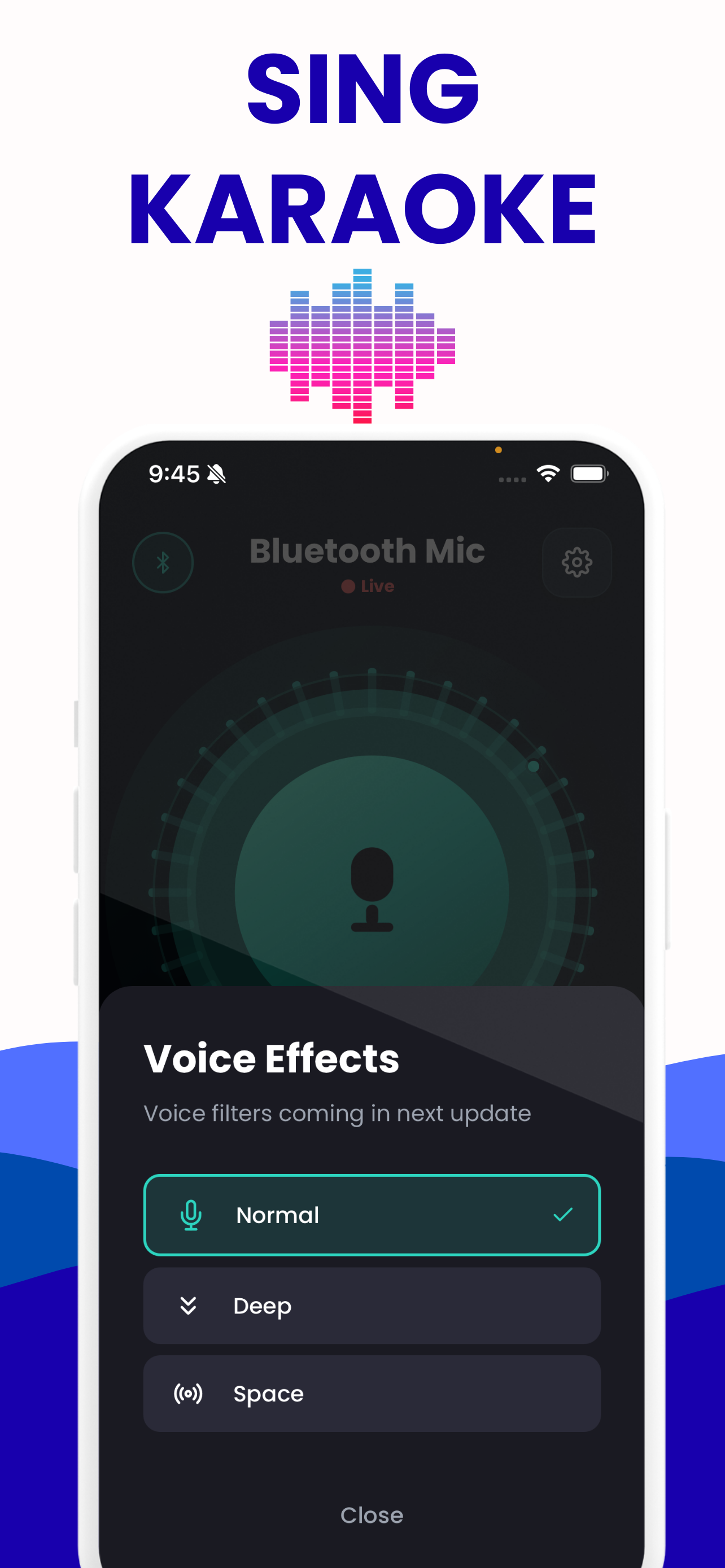
The same chain, as an app
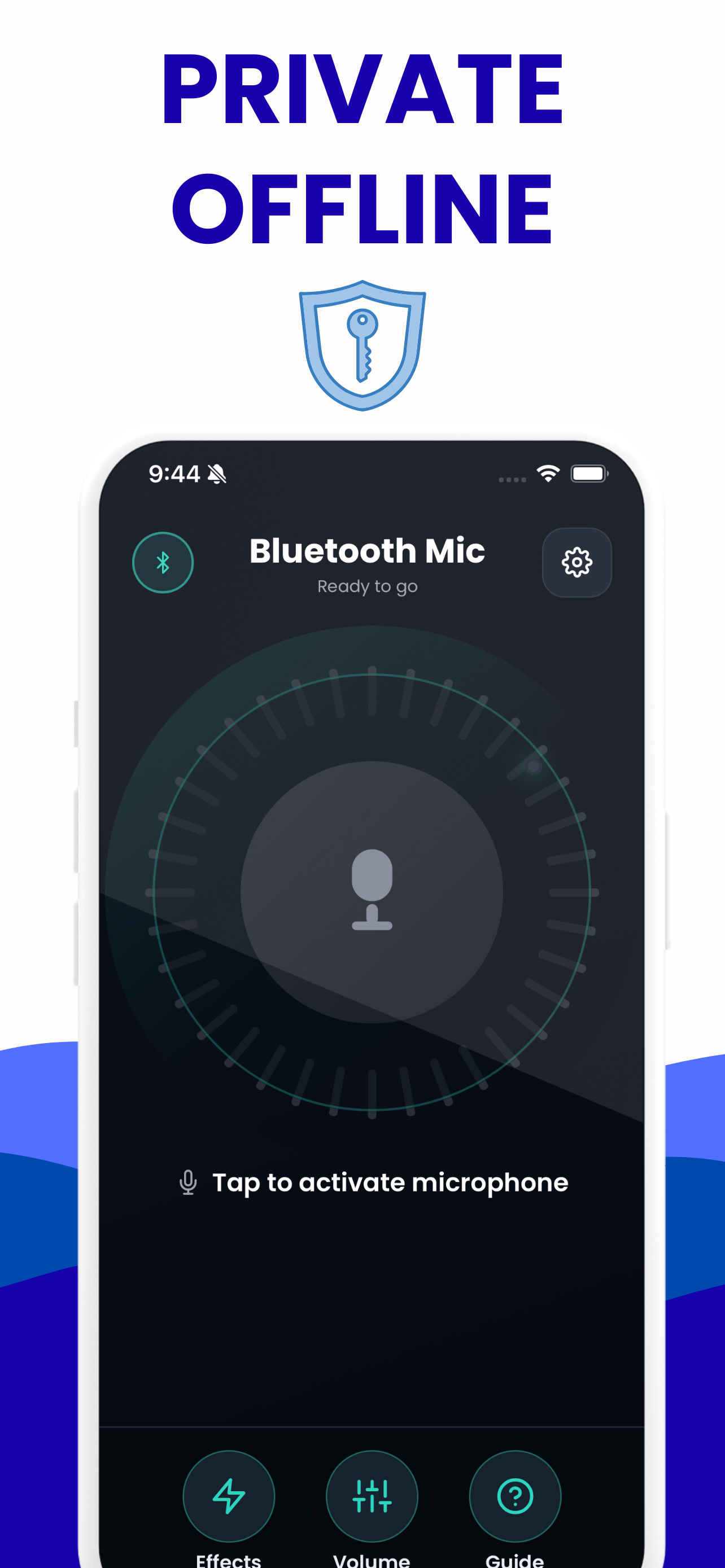
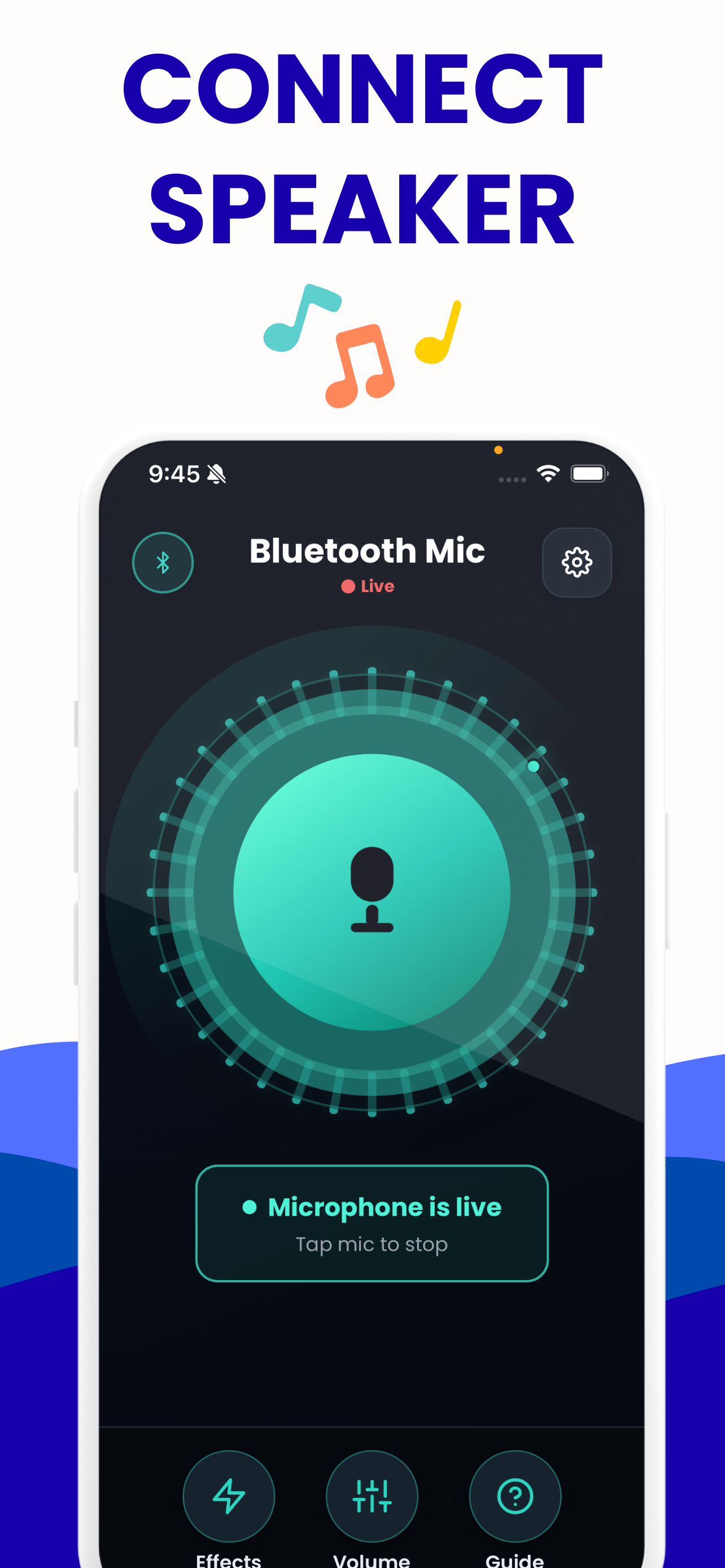
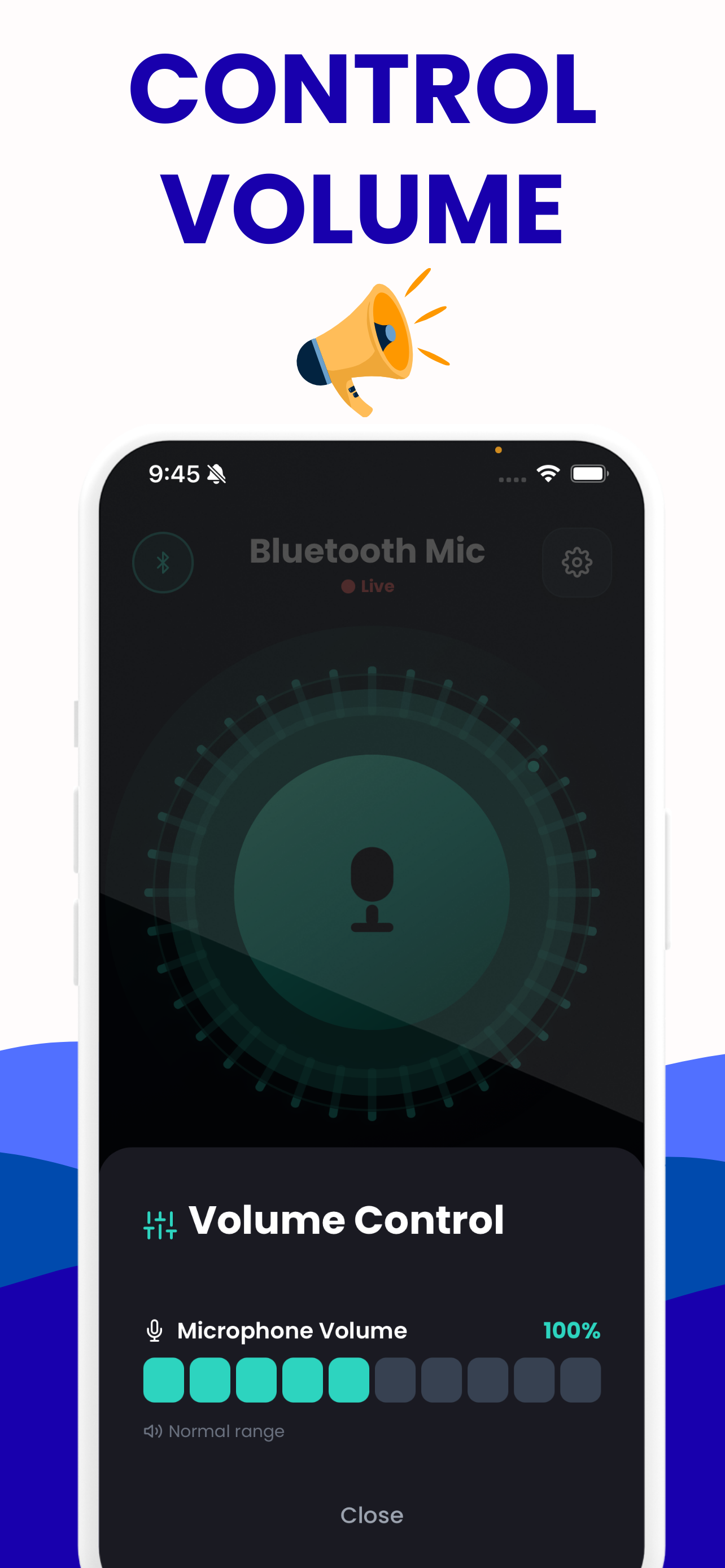
The browser tab is for checking that it works. The app is the one you carry into the room.

Questions about this tool
Does this page send my voice to my Bluetooth speaker?
Not on its own. A web page cannot choose your audio output. It plays into whatever output your device is already using, so if your phone is already playing through the Bluetooth speaker, that is where your voice goes. Selecting the speaker is done in the phone's own settings first, the Bluetooth panel on iOS or Connected devices on Android, and the same is true of the app on both platforms.
Learn more: Connect iPhone Microphone to a Bluetooth Speaker →
Why do I hear myself a beat behind?
That is the wireless link plus the browser's own buffering. AAC, the codec an iPhone uses, is quoted at roughly 100 to 200 ms; an Android phone may land on SBC, AAC, aptX or LDAC depending on the handset and the speaker. A2DP end to end is roughly 100 to 300 ms (Hollyland). No app or web page can take that out of the chain, because it lives in the codec and in the receiver's buffer. Measure your own figure on the latency test rather than judging it by this tab.
Learn more: Bluetooth Microphone Delay: Real Numbers, Real Fixes →
Why did it start screaming the moment I turned the output on?
The speaker is feeding the microphone, which feeds the speaker again. The howl guard will name the frequency in hertz when it detects one. Put headphones on, move the phone away from the speaker, aim the speaker past you rather than at you, and drop the gain until the ring stops.
Why is my gain stuck at 60 per cent?
Because you have not confirmed where the sound is going. Until you turn on the switch that sends audio to your speaker, the page holds the gain at the same 60 per cent ceiling the app applies, on iPhone or Android, while the phone is playing through its own built-in speaker. The readout says capped rather than moving the slider behind your back.
Learn more: Voice Amplifier on iPhone: Gain Without Feedback →
Is any of this recorded or sent anywhere?
No. The whole chain runs in your browser on your own device. Nothing is written to disk, nothing leaves the tab, and there is no server behind this page for it to go to. The app behaves the same way: it works offline, keeps no account, and holds on to nothing you say.
Is there an Android version of the app?
Yes. The app is on Google Play for Android as well as on the App Store for iPhone and iPad, and it is free on both. The Play build is published by AppsOverflow LLC under the package com.mictospeaker.app; the iOS build needs iOS 15.1 or later. Same live passthrough, same 0 to 200 per cent gain, same eight presets. The tool on this page is a separate thing again: it runs in any modern browser, so it works on an Android phone, an iPhone or a laptop whichever app you install.
Learn more: Android Phone as a Microphone for a Bluetooth Speaker →
Other tools on this site
All free, all running in your browser.
Bluetooth latency test
Measures the real round-trip delay of your own speaker by sending a chirp and listening for it coming back.
Open it →Bluetooth mic test
Check the level, the sample rate and the channel count of any microphone — including the moment a Bluetooth headset drops to narrowband.
Open it →Bluetooth speaker test
Left and right channel checks, a 20 Hz–20 kHz sweep and a bass sweep, to find out what a speaker actually reproduces.
Open it →Live voice effects
All eight of the app’s voice presets, live on your own voice, with the frequency-response curve each one applies.
Open it →Put the microphone in your pocket
Free on the App Store for iPhone and iPad, and free on Google Play for Android. Same gain range, same eight presets, and it follows whatever output the phone is already using. No account, works offline, nothing is recorded or stored.